1. Bookerei manages
Import and read EPUB/PDF books, organize shelves, edit metadata, and keep notes, highlights, and progress.
A local ebook library across computers
Keep your Bookerei library in a synchronized folder that remains under your control.
OneDrive, Dropbox, iCloud Drive, Google Drive, or another desktop sync provider copies the folder between your computers. Bookerei reads and writes the local folder; it does not upload or host your books.
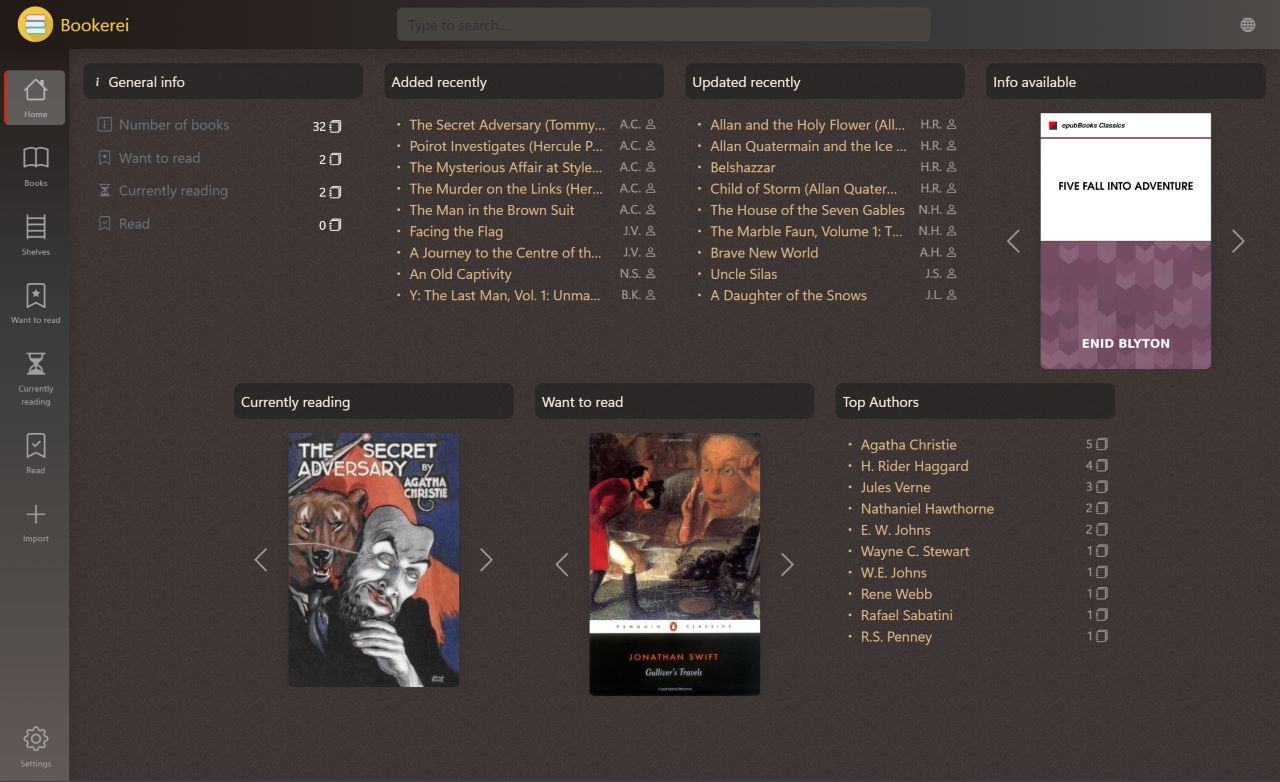
How the shared library works
Bookerei manages the library. Your computer keeps a local copy. Your chosen desktop sync provider transfers folder changes between computers.
Import and read EPUB/PDF books, organize shelves, edit metadata, and keep notes, highlights, and progress.
Bookerei opens the library from a normal folder available on the Windows or Mac computer you are using.
The OneDrive, Dropbox, iCloud Drive, Google Drive, or other desktop client synchronizes that folder.
What travels with the library
The synchronized Bookerei library folder contains the imported EPUB and PDF books plus the library information Bookerei keeps with them.
Bookerei records library changes in the shared repository. Your desktop provider transfers that repository and the physical files, so its storage limits, file availability, sync timing, and file-conflict rules also apply.
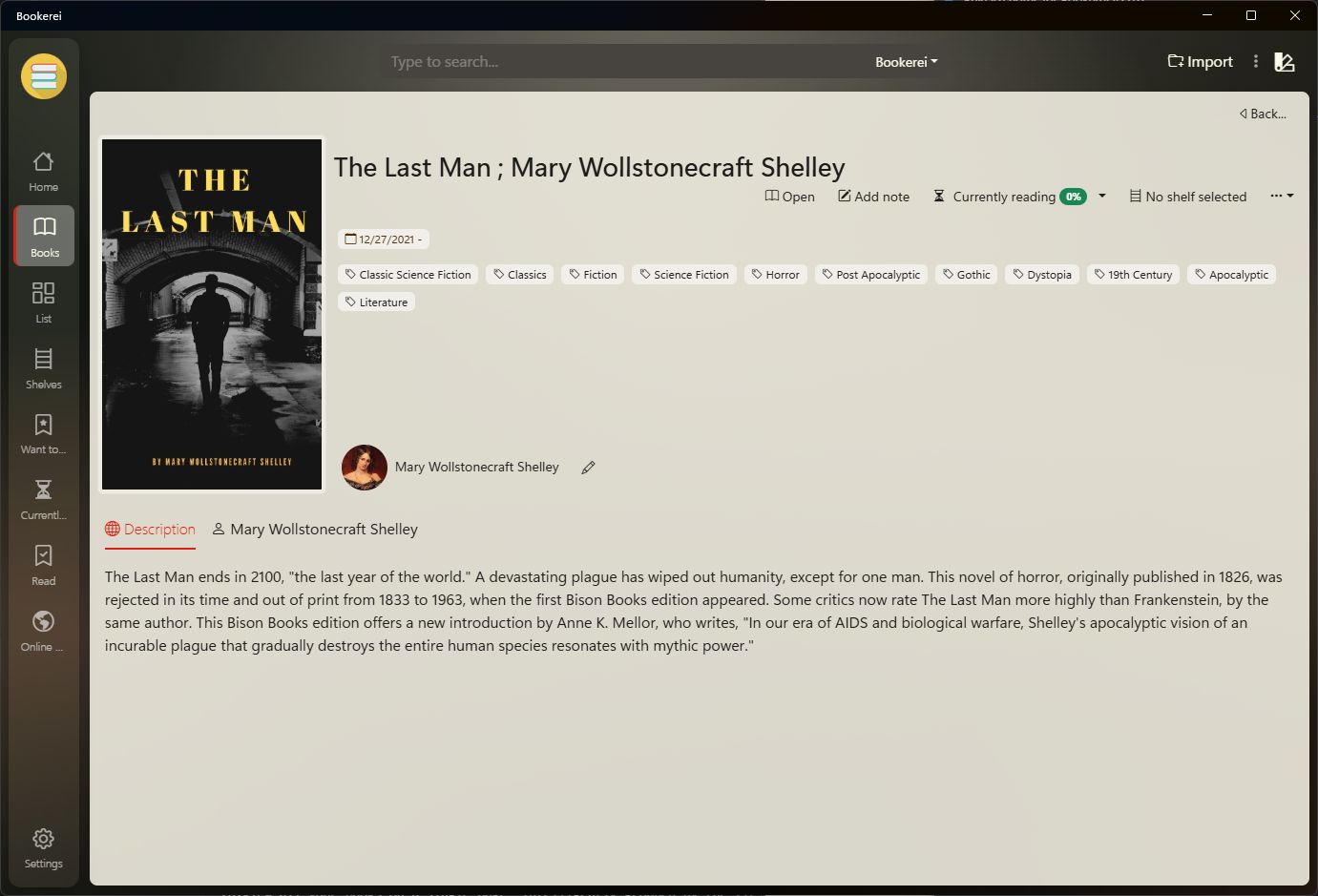
Setup
Complete the folder synchronization first, then point Bookerei on each computer to the synchronized local copy.
Sign in to your chosen provider on every computer and keep the Bookerei folder available offline.
Create or move the Bookerei library into the synchronized location you control.
Let the provider finish downloading the complete folder before opening it on the next computer.
Select that synchronized local copy in Bookerei on the other Windows or Mac computer.
If the same library item is changed on two computers, Bookerei keeps the change with the newer modification time; separate field edits are not merged. For predictable results, finish changes on one computer and allow the desktop provider to complete the folder transfer before editing the library on another.
The provider still controls physical file conflicts. If it reports a duplicate or conflicted file, use that provider's recovery tools. Keep the library folder available offline so Bookerei can open the complete local copy without an internet connection.
Shared library questions
No. Bookerei reads and writes the library folder on your computer. If you put that folder inside a synchronized location, the third-party desktop provider transfers it.
No. Bookerei does not require an account. Accounts and storage limits from an optional sync provider are separate from Bookerei.
Yes. Keep the same library folder locally available through your provider on both computers, wait for synchronization to finish, and select the local copy in Bookerei on each platform.
Yes, when the complete library folder is available offline on that computer. Changes remain local until your desktop sync provider reconnects and transfers them.
For the same Bookerei library item, the change with the newer modification time wins and separate fields are not merged. Your desktop provider handles physical file conflicts. To reduce both kinds of conflict, let Bookerei and the folder provider finish before switching computers.
Bookerei 2.3.4
Download Bookerei for Windows or macOS, then choose the local or synchronized folder where you want the library to live.